Showing posts with label Livescribe. Show all posts

Monday, November 11, 2013

Livescribe 3 Review

I was sent a Livescribe 3 Smartpen for the purpose of this review.

Here is a video introducing the new Livescribe 3 Smartpen.


I was really excited to get my hands on the new smartpen after I saw the video. I loved the idea of seeing my writing appear on my iPad to be instantly moved over to my Evernote notebook when I was done. I was also interested to see how well the software could ready my writing and transfer it into text.

First, the connection to my iPad was quick and seamless and the writing popped up on the screen with only a slight delay. I was able to connect my iPad to AirPlay and project my tablet. This allowed me to move the iPad and the notebook to anywhere in the classroom. Instead of having the traditional document camera where the teacher sits and writes for the class to see, the Livescribe notebook can be passed around and students can do the work on their own, record their voice as they walkthrough the work and then have it all saved for playback later.

All of the pencasts can be saved directly into Evernote into shared notebooks so students can access them from their own accounts wherever they are. Here is an example of a pencast I shared to Evernote. The sound is great and it captured everything I wanted without a problem.

For me, the goal of technology in my classroom or professional life is to sometimes make everyday tasks a little bit easier. Those few minutes saved here and there can add up and allow me to focus on  other things that need to get done. 

By having the pen connect directly to my iPad or my iPhone, it allows me to directly send the notes to my Evernote account and share them with my students or save them for review later. If I want to convert my notes into text, I can simply swipe the the portions I want changed and save the notes that way as well. My hand-writing is pretty rough, but the software did a very good job reading my writing. I was very happy with that aspect of the software. It did not disappoint. 
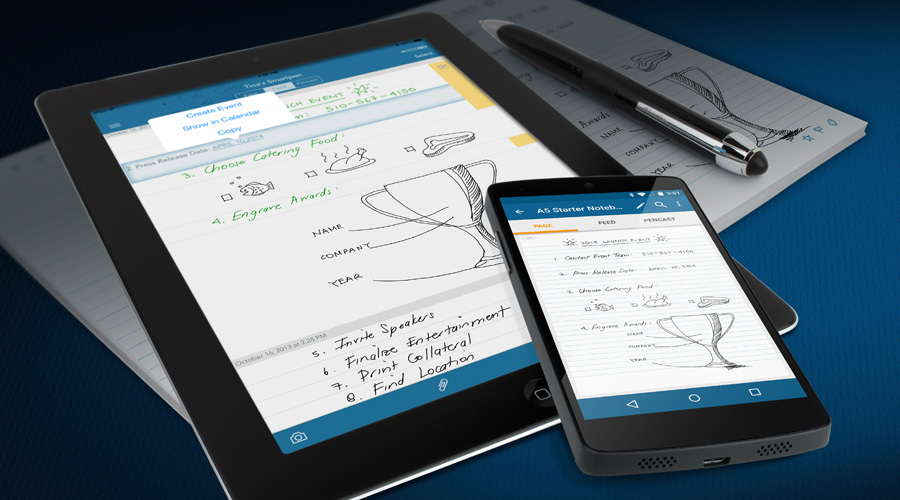

I really see this smartpen being very helpful in Math and Science classes as teachers are working through problems for the class to see and recording the work for students who need to go over it again at home or were absent for the day. Combining the iPad, Livescribe 3 and an AppleTV makes the most sense for a classroom looking to project to the class, record the work and share with others. That can all be done at once without the hassle of uploading and downloading. 


I had the $149.95 Livescribe 3 Smartpen and it was just perfect for me. I look forward to using it in my classes, sharing it with my journalism students for interviews and taking notes at conferences. The extra $50 for the portfolio, extra pages and ink cartridges is worth it if you will be using the pen regularly. 

If you have been thinking about getting a Smartpen, but were not sure when to do it, now is the time. It is a great pen and I can't wait to see it in action over the course of the school year. 

Friday, July 19, 2013

.@Evernote and @LivescribeK12 on the #EduTour

This is the first of a few posts I will be writing about using various tools to support the EduTour.

I wanted to briefly talk about the awesomeness that is Livescribe and Evernote. I have been using the Livescribe Sky Pen for a while and I have always loved it. It can record the notes and audio and directly save it to a specific Evernote notebook. This isn't new. However, using it on this trip makes the most sense. This is something that I would recommend to all journalists and journalism classes. I will be passing this to my journalism teachers this Fall.

One of the things I am doing on this trip is interviewing people about education. I want to know what they think about the current state of education and what they thought about their education growing up. Traditionally, I would just listen and take notes on my iPad or in a notebook. My main problem is that my handwriting is not very clean and I have a hard time listening and writing down information at the same time. Note-taking has always been a nightmare for me. Livescribe and Evernote solve that problem.

I now get to keep the audio of the conversation and I do not have to worry about the handwriting or getting every word down for the interview. What I have actually done is write the questions done in advance and just create dots for each person I'm interviewing. When I go to the next questions, I create a new dot. I have all of the information right there in the book for review after the trip or while Tim is driving. By listening to the interview, I can make any other notes I want for the things that really stand out to me.

The back up to Evernote is also great. If something should happen to the notebook on the trip, everything I have is saved in Evernote. I will not lose a single interview or note. That is what is so great about the cloud based storage of Evernote and Livescribe. I really think more teachers should look into taking their class notes using Livescribe so students can do the same thing. The notes will always be there not matter what happens and that is huge for students who tend to lose things. These two guys just made the #EduTour so much easier.

Wednesday, May 1, 2013

Chemistry Class and a @LivescribeK12 Sky Pen #EdChat #SciChat


Here is a post from Jessica Haggerty (@gpschemistry) who is a Chemistry teacher at Grosse Pointe South High School. I gave her a Sky Pen and was curious how it would work in her classroom. Here are her thoughts. 

I use the Livscribe Sky Pen almost daily in my chemistry classroom.  Especially during units heavy in problem solving, it is extraordinarily helpful for students who were absent for lessons or students who need extra reinforcement when working at home to have access to the lesson at home.  Before using the Sky Pen, handing a copy of the notes where I had solved a long problem to a student left them only confused searching for how I got from one step to another and where I took specific numbers from.  The learning that can take place where they can listen to an explanation and solve the problem without me being present is incredible. 

Personally, one of the greatest things about the Livescribe Sky Pen for me is that when I am unable to be in class for a day, I do not have to “miss” a day in my curriculum.  I can go through the lesson at home the night before and have the lesson ready for my substitute teacher the next day.  It allows me to stay up with my curriculum even if I have to miss days.  On the same note, it allows me to give the students more supplemental material and reviews that they can view on their own time. 

The students have become accustomed to having their lessons online and regularly use them.  Many have even come to me, seniors especially, about purchasing their own pen to take to college as a resource.  I highly recommend using the Livescribe Sky Pen to all educators, especially in the math and sciences.

Here are some examples that Jessica has created using her Sky Pen:

brought to you by Livescribe

Jessica Haggerty is in her 4th year of teaching and teaches honors and regular Chemistry. She has a Chemistry degree and a masters in teaching and curriculum with a technology endorsement. You can follow her on Twitter at @gpschemistry

Monday, February 18, 2013

Awesome Annotations with Livescribe #EngChat #EdChat

A group of students were not happy with the current selection of books in our curriculum, so they started their own book club. I agreed to come on as a co-adviser because I love to read and I support students who love to read.

The group will meet once a week and we will discuss part of a book the group has chosen. The first book the group chose is The Virgin Suicides by Jeffrey Eugenides. I love this pick because it is a great book and he is actually from the community I teach. The story is actually set in the city the students live, so that should make for some interesting conversations.

Anyway, I really wanted to make sure I did a good job reading and annotating this story so I could share with the group. I feel I have a high bar to meet since I'm an English teacher. I didn't want to just download a book and annotate that way and I didn't want to just buy a book and highlight it. I wanted to do a little bit more with the notes, but wasn't sure what to do.

Well, Livescribe was the perfect solution to my problem. I have the Livescribe Sky pen and I recently purchased Livescribe Sticky Notes. By using these two items, I can take notes on the Sticky Notes and not only save them in the book, but they are saved in Evernote.

I can take the Sticky Notes with me and leave them in the book as I read. With my pen by my side, I can just add the notes as they come up and annotate the book as well. This book club idea has me thinking though.

What if I took the books we read in class and did my own annotations using the Sticky Notes? After the notes were saved, I could then post a public link on my website or drop those notes in another shared notebook with my students and they could have my notes while they read. Maybe note specific notes, but perhaps I add guiding questions. The Livescribe pen and the Sticky Notes can change the way I teach annotation with my students and can add a layer of class discussion that I haven't been able to have.

If I allow the students to edit the notes I share with them, the students could actually add their thoughts and ideas to the annotated notes I left. This could create a crowdsourced collection of annotations for the entire class to see. This could have a serious impact on how my students study and share. It can also really help some of my struggling readers to see what others are thinking why they read and can also add their thoughts.

I think I am going to try this for Gatsby or Catcher this semester. I know that it will be some work on my end upfront, but once I do it the first time, I will have the annotated notes in Evernote and in my book for years to come.

For those of you looking at different ways to use their Livescribe pen, I think this is a fun and exciting way to use annotations in the classroom. Stay tuned as I explore Livescribe Pens in my classroom.

If you want to start your Evernote journey now, follow this link to sign up!

Monday, February 4, 2013

New @LivescribeK12 Education Bundles #edtech #edchat

I have been a big fan of Livescribe for a long time. Their pens have been awesome in allowing me to communicate with my students when I'm not around. The ability for me to do a pencast and upload it to Evernote has been key in helping me emphasize certain parts of my lesson plans. I know I'm not getting the most out of it, but I keep using it and discover new things to do with it all of the time.

I wanted to share with you some new educational bundles from Livescribe that might entice you to pick up a Livescribe pen for your classroom.


I love these deals that Livescribe is offering educators. School districts are tightening their belts when it comes to expenses and this is a great way to get amazing tech into your classroom for a cheaper price. Not only that, they are adding some great pieces to their awesome pens. The best practices guide, deployment guide and the extra ink cartridges are an excellent bonus when buying these bundles. 

Why should teachers have all of the fun with it comes to Livescribe. These pens are awesome for students who want to capture everything and their traditional pen and paper can't keep up! I also love that there is a chance to buy the great materials if you already own a Livescribe pen and are looking for ways to get even more out of it. It's a smart move. 

Livescribe is working hard to reach teachers and students to help them get the most out of their classroom. Their work with Evernote is another great step in the right direction. The Sky pen wifi connection that sends all of the work to an Evernote notebook has increased workflow for me and helped me stay a bit more organized. For those looking to finally take the plunge into the world of Livescribe, now is the best time to do it with these amazing bundles. 

For more information on the bundles, check out Livescribe's site and their PDF on the Bundles


Tuesday, October 2, 2012

Epic @Evernoteschools Experiment Update #4 #edchat

Last week was a fairly simple week. Kids come in, get their iPad from the cart and log into Evernote. It's become a solid routine for my students. I still need to remind some of them to log off, but it's much better now than is was a couple of weeks ago.

My classroom has a Smartboard and I use the Notebook software to take notes. It's nice because I can save the notes as a PDF and upload them to a shared notebook in Evernote for my students to access. One day, my computer decides it doesn't not want to open Smart Notebook and kept crashing. This happened right before I needed to use it with my Freshmen. Say what you want, but Freshmen to not respond well when plans change on the fly.

At first, I wasn't sure what to do. I had everything ready to go on the Notebook file, but couldn't access it. Normally, I would just write on the chalkboard, but the Smartboard covers my chalkboard, so I could write there. I looked over to my desk and saw my IPEVO Document Camera and my Livescribe Pen plugged in and it clicked. I will use both of them to accomplish the same thing with Notebook with an added bonus. Recorded audio!

I told the class we were going to try something a little different and I needed them to pay close attention and speak up when called to answer a question. I took out my trusty Livescribe Notebook, turned on the document camera connected to my computer and displayed on the projector, and started recording a lesson in front of the class. It was awesome!

I did about 10 minutes of notes and conversation and stopped the recording. After class, I uploaded the Pencast to Evernote and shared it with my students by placing it in the shared folder. It was an awesome and really smooth process.

I couldn't be happier with the way that turned out. I will be doing more of this in the future, but next time, it will planned in advance.

Have any questions about using Evernote in the classroom? Send me an email or a tweet and I will help you out.

Want to use Evernote on the iPad, but are not sure where to start? Check out my book on the iBookstore and you will be an expert in no time!

Tuesday, July 17, 2012

IPEVO and the Epic @EvernoteSchools Experiment #edchat

When I was at ISTE, I stopped by the Evernote booth and had a chance to see a demo of IPEVO document cameras. The cool thing about these cameras is that they will be able to (Sometime this summer) save pictures directly to Evernote accounts. I loved this idea! There are plenty of things I do by hand in class that I would love to take snapshots of and move directly to Evernote. I know my students will also want to do the same thing once the Experiment gets rollings. I reached out to IPEVO to see if I could demo their awesome devices and they agreed! Here is what I saw with the two different devices. 

Point 2 View USB Document Camera retails at $69.00 and it is a great bargain. I was able to take it out of the box, load the CD and start looking at things with the camera in under 5 minutes. The Point 2 View is extremely portable and the arm attachment bends to all for different angels. What I like best is that the camera can detach from the arm and be clipped to the computer as a webcam or moved around to show different aspects of an object. I have seen document cameras that cost hundreds of dollars and have tons of bells and whistles, but the average teacher does not need all of those things. The Point 2 View is perfect for the classroom setting and exactly what I need for the Experiment. The program that I installed allowed me to take pictures, zoom up to 3X and review the pictures that I took. I could choose to flip the horizontal or vertical to get the picture correct that I was trying to display. I can set a timer to 3 or 10 seconds if I wanted to get class pictures. All of the controls were very simple to adjust and did not require an extensive manual. The camera has an autofocus button that can be set to Auto if desired. The picture was crisp and clear allowing me to change the resolution if needed. I'm very happy with the Point 2 View and would recommend to to teachers looking for a nice way to integrated a document camera into their classroom at an affordable price. 

Here are the specs for the Point 2 View USB Document Camera from the IPEVO website. 

  • True 2.0-megapixel CMOS sensor
  • Full autofocus lens
  • Up to 2" (5cm) macro focus
  • 3x digital zoom
  • Up to 30 fps live video capture (at 640 x 480)
  • USB 2.0 Video Class (UVC) interface
  • Mac & Windows PC compatible
  • Max shooting area: 9.4" x 7.2" (240mm x 182mm)
  • Max shooting area with extension stand: 17.17" x 13.4" (450 x 340mm)
  • L x W x H: 3.8" x 0.9" x 1.1" (96 x 24 x 30 mm)
  • USB cable length: 4.9ft (150cm)
  • Color: Silver camera, white stand


Ziggi USB Document Camera retails at $89.00 and is a nice upgrade. Since I had already installed the software for the Point 2 View, I did not need the CD that came in the package. I took it out of the box, plugged it in and opened the P2V software. You can see the specs below, but I will mention some of the differences you are getting for the extra $20. The max shooting areas is up from 9.4" x 7.2" to 12.2" x 9.1". A nice larger capture area is always a plus when working with larger objects. This comes is hand or odd sized projects or items that a teacher wants to display. The arm is much taller on the Ziggi as well. This is nice if the teacher really wants to pull back for an better perspective. I love the fact that the Ziggi is compatible with other applications. The need for hardware and software to play nice is very important in the educational field because we generally are putting together networks piecemeal so they more compatibility the better. I really like the Anti-Glare Shield for the Ziggi as well. If I'm trying to project something from a tablet, the glare protection is huge when I'm trying to display something quickly for the class. These reasons are more than enough to spend the extra $20. 

Here are the specs on the Ziggi USB Document Camera from the IPEVO website.

  • True 2.0-megapixel CMOS sensor
  • Full autofocus lens
  • Up to 2" (5cm) macro focus
  • 3x digital zoom
  • Up to 30 fps live video capture (at 640 x 480)
  • USB 2.0 Video Class (UVC) interface
  • Mac & Windows PC compatible
  • Max shooting area: 12.2" x 9.1" (310 x 230mm)
  • LxWxH: 4.92" x 3.15" x 10.63" (125 x 80 x 270 mm)
  • USB cable length: 4.8ft (146cm)
  • Color: black
  • Compatible with popular image/video capturing and internet calling applications, including Apple's PhotoBooth, Google Picasa, Skype, Window Live, Yahoo! Messenger, AIM, GoogleTalk, etc.


I was thinking about how I'm going to use this as part of my class and I was really excited about the possibilities. When the ability to send pictures to Evernote is available, I can quickly snap shots of things i have been working on in class and upload them to the shared Class Notes folders. Another thought was to use the Livescribe pen in conjunction with the Document Camera. If I took notes and talked using the Livescribe Pen and the Document Camera, I could create pencast that can be saved to Evernote and instruct the class at the same time. I could take care of two issues at once. Since the upload of pencasts to Evernote is seamless, it will not take extra time out of my day to create, upload and share the information. 

This is a perfect example of what this Experiment is about. I want to try and see how the different combinations of products can enhance the instruction and learning of the students and teacher (me). There will be things I will try that are awesome and things that will not work as well as planned. I'm excited that people are interested to see how this works and that there are companies wiling to have me pilot their products in class. Please share your thoughts on how you would use an IPEVO Document Camera in your class. 

I look forward to sharing more exciting updates on the Epic Evernote Experiment. 

-Nick

Thursday, July 12, 2012

The Epic @Evernote Experiment #edchat @EvernoteSchools

Hello everyone! I've had plenty of requests to write about what I'm doing and I wanted to wait until I was all set before I wrote a post.

This Fall, I will be doing an Epic Evernote Experiment. I know that I have used the word Epic to describe my previous project (The Epic Romeo and Juliet Project), but this Experiment is truly Epic and I'm a sucker for alliterations.

My plan is pretty simple, use Evernote to share all of my class notes and reading with the students. All assignments will be shared through Evernote as well as any additional resources that I use in class. Seems pretty straight forward.

I have spend the past few days compiling all of the resources I have used in my class for my Honors American Literature, Traditional American Literature and Freshmen English. I have created notes, notebooks and tags for each piece. Units were cross-referenced using tags and the title of the note so students can quickly find what they are looking for on Evernote.

I created four Notebooks for each class; Assignments, Notes, Handouts and Stories. These are the four standard notebooks that will be shared with each student when they arrive to class in the Fall. They will have access to all of their textbook needs on Evernote wherever they are. All additional notes will be placed in the Notebooks as the school year progresses.

In the Notes Notebook, I have placed background information on authors and historical information centering around the various texts and stories we will be reading making sure to use the tagging feature to allows students to pull the information up quickly. I also created notes that have YouTube video read ins of some of the stories. I have created a complete digital backpack for my students. They will have everything they need for the entire year on the first day of school.

This process was a long and tedious one, but I have these notes FOREVER. I was able to upload PDFs and us the Evernote Clipper tool on Google Chrome to quickly and easily create notes and store them in the correct Notebook with the specific tags I needed. This really is a game changer for how my students will be able to access information inside AND outside of the classroom.

This would be an awesome experiment, but it's not quite epic. With that in mind, I have added another level to bring it to epic proportions. E-portfolios. I'm looking for my students to use Evernote Notebooks to store their written work and projects. With the ability to take photos and record audio I envision students being able to take pictures and store their thoughts on various work throughout the year. Long term, this could be great if an entire school district got on board and students from a young age could curate all of their work over the course of their school career. Imagine a 12 Grade student being able to review their writing from 5th grade. I can't think of a better way for an individual to measure growth. I wish I could see my work from grade school.

I'm excited to be working with some other companies who partner with Evernote and want to help with this Experiment. IPEVO is sending over a document camera that, later this summer, will allow images to be directly sent to Evernote. I'm really excited for the chance to look at this document camera. I have heard nothing but good things and I'm always pumped to offer more tools to my students. I envision many of my artistic students using the Document Camera to record their hand drawn work at home and storing it on their Evernote accounts. Their are many different possibilities.

I'm talking with other groups that are interested in being part of the Epic Evernote Experiment. If you are a company and want to join the fun, please send me an email at OneNerdyTeacher@gmail.com and I will get back to you right away. If you know of a product that would fit in well with my Experiment, please let me know and I will reach out to them. Any new products will be mentioned on my blog as they come in and I look them over.

I'm really excited about the possibilities of creating this environment for my students. Follow the journey on the special page I created. The Epic Evernote Experiment

If you want to start your Evernote journey now, follow this link to sign up!

That's it for now, stay tuned for more fun in the near future.