Showing posts with label Evernote. Show all posts

Monday, June 5, 2017

Using @Evernote to Organize Your Educational Life #dChat


I've been a huge fan of using Evernote in my classroom for many years. I've documented the use in many different blog posts. I thought I would do a quick revisit to share how I have been using it lately.

Below are screenshots from my phone. My phone is the number one tool I use to access Evernote. It is super convenient as a classroom teacher to have all of my lessons at my fingertips.

Here is a screen shot of some old lesson plans. I love to write things down and then snap a picture to save it in Evernote. If I want, I can always annotate the picture in Evernote.


Here are some lesson plans on my The Catcher in the Rye Unit. I type up what I want to focus on based on the kids discussion and go from there. The nice part of having everything stored digitally with Evernote is that I can add or change anything I want as needed. Since I spend time reflecting after each unit, I can make changes or add notes to make the lesson stronger. Since everything is accessible on my phone, I love adding ideas to unit wherever I am when I'm inspired. There have been times when I've been waiting at the Doctor's Office or in line somewher and I added a new idea to Evernote. 


I love Evernote because it can hold all of my lesson plans in all of my classes. After teaching 15 years, that is a ton of lessons. Organizing everything into Notebooks is simple and the search feature allows me to find anything that does not jump out at me right away. Evernote truly keeps me organized and cuts the paperwork clutter down to nothing.


I can quickly add a notebook or jump to the notebooks I have been using most lately. Little details like this make using Evernote a seamless part of my day.


If you are looking for a way to become more organized and move away from your paper dependency, check out Evernote and sign up for a free account. I guarantee you will upgrade after a few months. 


Wednesday, April 16, 2014

Reminders with @Evernote #EdChat

I'm always looking for ways to better communicate with students and keep them up to date with what we are doing in class. One of the ways I'm going to do this is by using the Reminder feature on Evernote. It is a great way for students to remember what they need to do before they head home for the school day. Here is how I set it up.

1. I share specific notebooks with students that they join. These notebooks are assignments, handouts, notes, etc.

2. I tell students they can download Evernote for their phone if they choose to receive reminders. They download Evernote and turn notifications on for their device.

3. I create notes in the notebooks I want students to access. When I create the note, I set a reminder for the day and time I want the students to receive the reminder.


I always set the reminder for my students for the end of the school day. 

4. When the time comes, a notification will appear on their phone at 3:05 reminding the of the homework for the day. 

5. I can review all of my reminders in the notebook and check them off when they have been completed. 


This is a simple way for me to send another reminder to my students that they have something to do before they go home. I look to do some other things with the reminders as well. I can pass along messages of encouragement in notebooks and set a timer for their reminder. I can set long term notifications for projects to help them stay organized. I'm sure there are many more ways I can use reminders to help my students. Leave any ideas you might have in the comment section. 


Thanks!

Nick

Monday, April 14, 2014

Use @Evernote for all of your lesson planning needs #EdChat

Since I started to use Evernote in every aspect of my classroom, I wasn't really sure what I was going to discover. I was sure there would be some way that Evernote was not going to meet my needs and I would be forced to add another tool to my chest while I continue the experiment for the school year. One way I was weary of was lesson planning. I have used the the traditional planner book for years and it has always been very good to me. I could easily flip back and see what I what I did the year before as I planned the upcoming school year. I'm not a big fan of trying to fix things that are not broken, but I figured I needed to give it a try in the name of the Experiment. Needless to say, I was not disappointed.


Here is a shot of my desktop version of Evernote. I have created lesson plan notebooks for each class I'm teaching. Within those notebooks, I've created notes for the individual units I have created for the school year. For each unit, I do not place dates, because I want the flexibility to move units around as I need to. 

Within the notebooks for the specific classes, I have scanned and uploaded various assignments I had in paper form only and added them to new notes. For assignments I already had in digital form, I copied and pasted them into new notes. This was a very simple and smooth process. I now have every document I need to teach a full year of school. 

Since all of my students will have Evernote accounts, I can easily share the assignments with the students in specially created notebooks. I can take a note, copy it and place it in the shared notebook when I assign the work. No handouts, copies or lost work. It will be there for the students the moment I place it in the notebook. There will be a tremendous amount of time saved by not having to pass out assignments to everyone at the start or end of the class. 


I have also created notebooks that contain notes on tech tips for using the various tools. The students will have complete access to any and all information when they want and where they need it. Simple things like this will save everyone involved some time when it comes to troubleshooting. As the school year moves along, I will be able to add new notes to address issues that come up along the way. 

One of my favorite parts of lesson planning in Evernote is the ability to tag my notes. 


If I want to see all of the different essay assignments for first semester, I just need to search tags for "Essay writing" and "First Semester." Only those notes will appear in the search field. I can narrow the search down as much as I want. It is awesome. I was never much of a tagger when it came to using Evernote for personal use, but for lesson planning, it would be stupid not to tag everything. My notebooks are only going to grow over time, so tagging makes sense when I want to find something to edit it or even share it. Tagging is going to save me so much time down the road. No longer will I be digging through a filing cabinet looking for "that" assignment. A quick search of my tags will have it ready in a flash. 

As I look at the set up, I have to say the best part is the fact I do not need to re-invent the wheel a year from now. It took me hours to sit and plan out an entire school year for three classes, but it is worth it. I will not have to do it again. I will have to tweak assignments and I might remove or add readings, but the bulk of my content is saved for life. 

Another nice bit is that my lessons are available on my iPhone, iPad, home computer and anywhere I have Internet access. If I want, I can download all of these notes and access them when the Internet is down. I've spilt drinks on my lesson planner before, it was an awful experience. Now, it's not a problem. 

If you are looking for a new way to approach lesson planning, please take the time to explore how Evernote can change and improve the way you prepare for the school year. You will not regret it. 


- Nick

Friday, February 7, 2014

Reminders on @Evernote #edchat

There is a great feature that many people do not know about in Evernote. The Reminder feature has been around since last May and it has had a huge impact on the way my students stay organized in my classroom.

For my classes, I've created public notebooks that students can join, but they do not have any editing rights. One of these notebooks is for the daily assignments. These could be the assigned reading for the day, information on longer projects or anything I want the kids to know on any given day. The students can access these notes in the notebook on their personal device through Evernote. I do not use my school website to store my class assignments because all of my students have their accounts. I even have some parents that have joined the notebook so they can see assignments on their Evernote account without having to navigate the district website. 

In a note, a user can create a reminder.


When the user has their notifications turned on for Evernote, they will see a reminder pop up on their screen. This could be used for meetings, shopping lists or anything you want to remember and might need notes or other information. The cool thing about the reminder feature is that it works for anyone that has joined the notebook. My students that have joined the notebook will get any reminder I have set for a note. 

Every day I create a note and I set the reminder for 3:05PM. This is the final bell for the school day. One of the things that kids do when school is out is take out their phone. For my students, the first thing they will see if they have their reminders turned on is a reminder for the day's work. If the student logs into Evernote later in the day, they will see a list of reminders they need to check off to get rid of them. 


I'm always looking for different ways to reach my students and let them know they have things to do in class. Since I am always creating these notes anyway, it's very simple for me to through the reminder on the note and have that for my students who need it. 

Evernote continues to innovate new ways to make it easier to "Remember Everything" and the reminder feature is just another cool tool to help everyone do just that. 

In the coming weeks, I will be writing a bit more on Evernote. I am trying out the Post-It Notes that work with Evernote and the Jot Pen that helps with annotation on Skitch and Evernote. If you ever have any questions about Evernote, please drop me a line. It's my duty as the Evernote Ambassador to help Evernote peeps when they are in need. 

Have a great day!


Wednesday, September 11, 2013

Reminding Students with @Evernote #edchat

I'm always looking for ways to better communicate with students and keep them up to date with what we are doing in class. One of the ways I'm going to do this is by using the Reminder feature on Evernote. It is a great way for students to remember what they need to do before they head home for the school day. Here is how I set it up.

1. I share specific notebooks with students that they join. These notebooks are assignments, handouts, notes, etc.

2. I tell students they can download Evernote for their phone if they choose to receive reminders. They download Evernote and turn notifications on for their device.

3. I create notes in the notebooks I want students to access. When I create the note, I set a reminder for the day and time I want the students to receive the reminder.


I always set the reminder for my students for the end of the school day. 

4. When the time comes, a notification will appear on their phone at 3:05 reminding the of the homework for the day. 

5. I can review all of my reminders in the notebook and check them off when they have been completed. 


This is a simple way for me to send another reminder to my students that they have something to do before they go home. I look to do some other things with the reminders as well. I can pass along messages of encouragement in notebooks and set a timer for their reminder. I can set long term notifications for projects to help them stay organized. I'm sure there are many more ways I can use reminders to help my students. Leave any ideas you might have in the comment section. 


Thanks!

Nick

Monday, August 26, 2013

Things I Will Not Be Missing In My Paperless Classroom.

As I head into the new school year, I'm not scrambling for my old lesson plan book or looking for notes in some long buried folder. All of my work is saved in Evernote and I will be sharing the work with my students on the second day of school. As I was sitting and thinking about all of the things I was going to need to start the year, I was struck by the number of things I will not need now that I'm as paperless as I can get. In no particular order, here are the things I will not miss in the upcoming school year.

1. Milk Crates


I will not miss these guys at all. Carrying one or two of these down the hall, down the stairs and into my car only to have to make a return trip the next day was a pain in my butt. The amount of effort to jam as many notebooks or binders into these guys was just too much on some days. Carrying over 50 pounds of paper and projects to and from my car was a chore. Granted, I think my body is missing the upper body workout in carrying these guys, the stress of moving them around. These plastic guys will not be missed. 

All of my student work will be on Turnitin.com or saved in their Evernote notebook that can be shared with me and acts as an e-portfolio. I do not have to take anything home with all of  my work and their work saved in their notebooks. Nice. 

2. Binders


I mentioned these guys above and they make the milk crate problem even worse. Not surprisingly, milk crates were not designed to hold binders perfectly. Students also use infinite number of sizes for their binders, so it's playing a complicated game of Tetris to fit them all into multiple milk crates. Also, despite being told not to have multiple subjects in the binder, I still am asked by students to hurry and return theirs when I'm done because they have their Science and Spanish notes in there. Ya, the joy of binders in the English Classroom. 

Again, having students use their Evernote accounts to save all of their work, I do not need them to keep binders to store assignments. All of that work is saved in a notebook that is shared with me. I can pop in and look at their assignments whenever I want. If something is missing, I can send them an email or talk to them in class. 

3. Paper Jams, Low Toner, Copier Lines, and PC Load Letter


I have wasted countless hours waiting in line for the copier, fixing the jams others have left and trying to figure out how to replace the toner in the new copier. My prep time has been used fixing copier problems. I feel like I am the only person that would take the time to fix these issues. Special note to those that walk away. If you make copies, it jams and you try to sneak off, try not putting your name on your crappy worksheets. Makes being anonymous very difficult. 

I have cut all of that junk out of my life and I can now use my prep time for actually prepping lessons. I have scanned all of my work into Evernote. Every document I have ever created that will be used in class is saved in a note that is either just for me or will be shared with students. I share everything digitally with my students. It is either in a public notebook or shared through email. I no longer have to run to make one extra copy for the kid who lost it or missed school for some reason. everything is accessible digitally. This allows me more time to focus on instruction. Although I loved the accolades from peers for fixing the paper jam, I would rather work in the comfort of my own room not covered in toner.  

4. Lesson Planner


I love that they still make these with these covers. Nothing says professional teacher like the one room school house on the most important notebook you own. I used to have these plan books that had all of my lessons for the year. Everything I wanted to do would be written in pencil one week at a time. If I was daring, I would plan for two weeks. However, it was inevitable that I was going to miss a day, a lesson was going to run long or short or some other thing would throw off the entire schedule. I would then have to go in and draw arrows or leave notes on what to change for next year. 

After the year was over, I would place the lesson planner in a secure location to be taken out to use as a guide in August as I plan out the year. That was the plan. It never worked out that way. The planner never had the most important notes I needed for the lesson. My notes seemed great, but my gibberish handwriting and shorthand made it nearly impossible to figure out what the heck I was trying to tell myself. I would grow more and more frustrated and eventually just decide to go with what I had before and make the changes on the fly. Ya, great idea. 

I moved all of my lessons plans into Evernote and now I have everything I need when I want it wherever I am. I can make full notes on Evernote if lessons need tweaking and I can do that on my iPad, computer or iPhone. I never have to worry about leaving the planner at home or at work. Those days are the worst for a teacher. The internet would need to shutdown worldwide for that to be a problem. Even if that did happen, my Evernote notebooks are always available offline, so that problem is solved. As long as my device has power, I can still use my lesson in the post apocalyptic Thunderdome Bartertown scenario.

5. Lost Work


No giant Smoke Monsters eating work in my class. Work is completed saved in one of two digital spaces and is available whenever student or teacher wants it. When work was done solely on paper, the lost assignment was something that was to be expected. It would get eaten by a dog, swallowed by a kitty or destroyed by a rock monster. These are very real possibilities in the world of paper assignments. By moving everything to the digital realm, my students have their assignments on the ready when they want to learn and review. I do not have to spend time on conversations on why something is missing or coffee stained. The work will be there until deleted and then deleted from the garbage. Evernote and Turnitin.com allow my students a safe place to store their work from every possibility, including roaming polar bears on tropical islands. 

These are just a few of the things that I will not be missing this upcoming school year in my nearly paperless classroom. What would you be happy to say goodbye to if you were paperless?

If you want to start your Evernote journey now, follow this link to sign up!

Friday, July 19, 2013

.@Evernote and @LivescribeK12 on the #EduTour

This is the first of a few posts I will be writing about using various tools to support the EduTour.

I wanted to briefly talk about the awesomeness that is Livescribe and Evernote. I have been using the Livescribe Sky Pen for a while and I have always loved it. It can record the notes and audio and directly save it to a specific Evernote notebook. This isn't new. However, using it on this trip makes the most sense. This is something that I would recommend to all journalists and journalism classes. I will be passing this to my journalism teachers this Fall.

One of the things I am doing on this trip is interviewing people about education. I want to know what they think about the current state of education and what they thought about their education growing up. Traditionally, I would just listen and take notes on my iPad or in a notebook. My main problem is that my handwriting is not very clean and I have a hard time listening and writing down information at the same time. Note-taking has always been a nightmare for me. Livescribe and Evernote solve that problem.

I now get to keep the audio of the conversation and I do not have to worry about the handwriting or getting every word down for the interview. What I have actually done is write the questions done in advance and just create dots for each person I'm interviewing. When I go to the next questions, I create a new dot. I have all of the information right there in the book for review after the trip or while Tim is driving. By listening to the interview, I can make any other notes I want for the things that really stand out to me.

The back up to Evernote is also great. If something should happen to the notebook on the trip, everything I have is saved in Evernote. I will not lose a single interview or note. That is what is so great about the cloud based storage of Evernote and Livescribe. I really think more teachers should look into taking their class notes using Livescribe so students can do the same thing. The notes will always be there not matter what happens and that is huge for students who tend to lose things. These two guys just made the #EduTour so much easier.

Thursday, May 30, 2013

Wrapping up the Epic @Evernote Experiment #EdChat

It is hard to believe that June is upon us and my Epic Evernote Experiment is coming to a close. I wanted to share some thoughts with you on how this worked out for me and my students this year and offer some suggestions for teachers considering integrating Evernote into their workflow.

Lesson Planning:

This was the first year that I moved all of my lesson plans to Evernote. Everything I did started in Evernote as a note. All of my units were outlined in Evernote and all of my projects were planned in Evernote. If it was an idea in my brain about school, it ended up in Evernote.

I was able to store all of my old handouts and notes as PDFs that became searchable parts of my Evernote environment. I loved having my lessons with me wherever I went. I would often add ideas on my phone while waiting for meetings, appointments or before I went to bed. I was able to lesson plan on the go and that is huge for me. I found myself on the go more than ever this year and it was nice to have my lessons with me so I can address any ideas I might have. Inspiration rarely hits me while I'm sitting at my desk, so Evernote was perfect for capturing my ideas whenever and wherever I had them. 

Communication:

I created shared notebooks for student assignments. I personally invited each student to the notebook for their class. In that notebook, I placed the days' work. Almost every day, there was a new note explaining what the class work was going to be the next day. 


Students were able to access their work wherever they could access Evernote. The vast majority of my students have mobile devices of their own, so many of them would access Evernote on their cellphone. I had a significant drop in the number of students who claimed that they did not know what they assignment was the day before. It has been a huge time saver on my part. I no longer have to use class time to catch students up on what they missed. They know to go to Evernote to see what we did and what they need to make up. 

Access:

I was able to find a digital version of almost every piece of literature my class covered this year. I found them all online and saved these links in notes and shared them with the students. This allowed my students to leave their bulky textbook at home and read on the fly with their personal device. Most of the novels still needed to be passed out to the students, byt the vast majority of poems and short stories we cover are outside of copyright, so free digital version were available to my students. 

This was great for my students who wanted to see what the assignment was and complete it without ever having to leave the Evernote environment. Many students told me this was very helpful when they were going on vacation, sports trips and other long excursions where a large textbook and a notebook would not help them in a bus or car. Evernote gave them access to do their work when they wanted and that is a big win for me as a teacher. 

One final part of access has to do with parents. I placed the public link to the homework notebooks on my school website so parents could access the work as well. If a parent wanted, they could join the notebook from the public link I have posted and they can keep track of their child's work from anywhere they are. It's a nice bonus feature for parents that do not want to jump through hoops to get my teacher page and find the correct class for the assignments. 

Portfolios:

One of the big pushes for me this year was to have my students create portfolios. I wanted them to create a digital record of their work so they could access it when they needed. This access would hopefully prompt better reflection on their writing and leave to improved skills and stronger writing as the year progressed. 

My students have been keeping all of their work in Evernote this year and I think it has worked well. All handwritten work can be scanned or captured using Evernote's camera function. The nice part of the photos being added is that they become a searchable part of the Evernote environment. This means students can search for specific comments I have left and see what they need to work on for their next assignment. 

Students have done a very good jon of keeping their portfolios together, but some needed constant reminders to put their items in their so I could review them later. I loved the ability to have these portfolios be a shared notebook that would allow me to create a note just for my comments. It allowed for a dialogue on their work that did not need to happen publicly in class. I did not use this feature as much as I would have liked, but I can see myself dedicating more time to it next year because I do think it is a valuable option for communicating with students about their work. 

Next Year - Reminders 

This new feature by Evernote allows users to set up notification reminders on notes. This is going to be awesome for next year. Students that have joined shared notebooks can get automatic reminders if I set them on their assignments. I can set the reminder for one minute before school gets out so they can remember to get what they need from their locker for an assignment they might have forgotten about. 


This little addition to the Evernote world is huge for education. Students could get a digital reminder for every assignment given to them if the teacher adds the reminder to the note. That is huge. All of those students that forgot work despite all of the this help, can get one more reminder before school gets out for the day. I was hoping for something like this and I'm excited to see this in practice next year.

Overall Assessment:

I loved moving to Evernote this year. For me, it makes the most sense. I love having everything in a central location and at my fingertips. I will not have to reinvent the wheel next year with my lessons and I can tweak work on Evernote whenever I want. I worked hard all year to leave notes to myself in the lessons I made so I can make the appropriate changes next year. Using Evernote for Lesson Planning is a no brainer and I can't wait to see what next year will look like knowing I do not have to start from scratch. 

As for the student use, I was very happy with how everything turned out. Students used Evernote to take class notes, plan projects and store their graded work. I would like to try and set up a way using Evernote's email for students to submit work digitally and directly into notebooks. I would also like to try using Skitch to grade their work as well. The kids loved using Evernote and many of them used it for other classes. It really had a positive impact on many of my students on how they take notes and organize their class life. 

Evernote is a perfect solution for a 1:1 environment. I used it my class and was able to almost become completely paperless. That is crazy to think about when you consider the fact that I am an English teacher. After only one year of trying this experiment out, I'm excited to see what I can accomplish nest year with the experience under my belt. 

If you are interested in trying to move Evernote into your educational world, check out my book, The Complete Guide to Evernote in Education. It is available on Kindle and the iBookstore. 


Thursday, April 18, 2013

Fujitsu ScanSnap iX500 Desktop Scanner #Evernote

I was very lucky to get my hands on a Fujitsu ScanSnap Desktop Scanner a few weeks ago and I have been using it at home. I had heard about this scanner from other Evernote users and Ambassadors over the past few months, but had not thought much about it. As tax season was coming around, I really started to get a clutter of paperwork piling up around my home office. I wanted to quickly scan a ton of documents, many of which were double sided, and add them to Evernote. Well, the Fujitsu scanner is what I needed to get the job done quickly.


This scanner has to be one of the fastest scanners I have ever used and it scans both sides of the paper as it passes through the scanner. With a scanning speed of 25 pages per minute, I can add many of my old handwritten notes to Evernote quickly and easily. After the scanning takes paces, you are given the option to send the scanned images to different cloud based sources. For me, I send all of my goodies to Evernote.

Another cool feature is the ability to send a scan directly to your device. With the ScanSnap app, you can scan papers and have them sent directly to your mobile device as long as you are on the same wifi network as the scanner. This is a really neat feature if you are on the go and do not really use any of the cloud based options ScanSnap allows you to scan to. The free app is easy to use and the scanned documents look great.

Scan snap created searchable PDFs, auto-crops, removes bleed-through and removes blank pages. This is great if you have some pages that are double sided and other that are not. It's one of those little things that make organizing information a little bit easier. I've been scanning a few times a week since I received the scanner and I couldn't be happier about the work I have been able to get done at my desk.

As a desktop scanner, I couldn't be happier with the quality of the scans and the ease of sending scanned documents to Evernote. As I prepare for conference and other speaking engagements, ScanSnap is my go to Scanner for signed documents I need to save and organize in Evernote. Fujitsu has made a great scanner for the desktop environment and I recommend it to those in need of a tool to help get rid of the clutter on the their desks.

Here is a video with more information and you can check out the Fujitsu website for more information.


Monday, March 18, 2013

Sharing with #Evernote at Conferences #ASCD13

For those of you who do not know, I am an avid tweeter. I love going to conferences and tweeting the day away sharing amazing resources with people around the world. That has worked nice, but I have always struggled with writing blog posts after conferences. All of my information has been spread out over a series of tweets and I do not write my blog posts until later. It is very hard to find the tweets I sent about a specific session.

I decided to try something new at #ASCD13. I would take my notes in a session on Evernote and then Tweet out the link to my Evernote Note to everyone out there using the hashtag. I received great feedback by using this approach to sharing notes from a session. I think people like the individual tweets, but the complete notes from a session are just as valuable to others.

Anyone can share an individual note at anytime with the share feature of a note. People will be able to view the note as long as I want them to and I can pull it back at any time I want. I do not see any reason why I might do that, but it is nice to have that option. Below you will see a screen show of the notes and the sharing option for Twitter and other Social Media buttons.

I still intend to tweet from some sessions and during most conferences, but I will start to do more of my sharing from Evernote.

In case you are interested in the session I was at, it was by @megormi and it was about technology in the classroom. Here is the link to the Evernote Note.

https://www.evernote.com/shard/s4/sh/ab1cd471-0c5b-41d4-9c00-903956a85a60/bf0a7cd0eb55d02942b09c4c36418b90

If you want to start your Evernote journey now, follow this link to sign up!

Wednesday, January 23, 2013

Creative Space in the Classroom #EdChat

I'm excited about the new additions to my classroom this week. I was lucky enough to get some IdeaPaint for my classroom a few weeks ago. I was excited to have this back wall painted with it so I could have this large space where my students could work, plan and just be creative. Sadly, my plans were not able to unfold due to some problems with the wall I wanted to paint. I was frustrated, by the school's team of awesome engineers came up with a solution that ends up being a win win for me and my students.

The engineers installed two large pieces of particle board on my wall. They look like whiteboards and are just as easy to write on and clean. The boards were up for only two class periods and this is what students did.


You will notice the epic nerdiness of my students in these photos. I assure you that I had no influence over the quotes or pictures the students used. 

It is so awesome to see students get excited at the chance to be creative. A blank canvas and some dry erase markers inspired my students to draw and share their passions. Whether it was by drawing a TARDIS or the symbol for Skyrim, my kids were excited to share. The board is even crazier looking today than it was a few days ago when the picture was taken. Students have really taken to drawing and sharing bits of wisdom. 

Now I have the creative space I wanted, but I have IdeaPaint that needs to be used. I'm excited to take the paint and use it in a couple of places. I will be painting the door between the two pieces of particle board and I will be painting my desks as well. Now, my students will have a space to draw right on their desk and will be able to capture their work on their iPads using Evernote. This is perfect! 

As much as I love tech for certain aspects of my personal and professional life, I also just love to draw things out. It helps me think through various issues and plan my writing. I know that this is true for my students as well. The IdeaPaint will now allow my students to draw their ideas out and save them into Evernote. All of this can be done without the need to scrap paper. More trees will be saved!

The Plan:

The left wall will be used for planning. This is where groups can get together and plan out larger ideas for their projects. They can use it for story boards or large mind maps if they want. It is a work area for the groups that can't get all of their ideas out on their desks. 

The right wall will be the creative space. This will be reserved for students that need a place to doodle or share some art from their brain. It will be for before or after class use, but it will be their space. The board will be refreshed every Monday, so students are encouraged to take pictures, leave comments and support the work of their peers. It's a fun chances to bring some art into the classroom and I feel I can have some really great writing prompts created based on the art my students put up. 

The door is going to be a place for goals, dreams and quotes. I want this to be where students can write down what they aspire to be or do with their life. It can serve as a constant reminder of why they do what they do. This might be my favorite idea for using the IdeaPaint. 

These are just some of the things I plan to do with the creative space I know have in my class. What would you do with this space? I would love to hear from you. 

Thanks! 

Nick

Saturday, January 12, 2013

The Epic Evernote Experiment Semester in Review #EdChat #EvernoteLife


The first semester is drawing to a close and I have had some time to reflect on how the Epic Evernote Experiment has impacted my classroom. Here are some of the areas I really looked at:

Paperless: 

Evernote has allowed me to get rid of handouts. I just don't make them anymore. All of my projects are shared with my students through our shared notebooks and all assignments are posted on the Assignment shared notebook that is available for parents on my website. Traditionally, these handouts would be viewed by students then trashed. Now they can view them on Evernote and trees can be saved.

Also, I'm not stuck in line at the copy machine in the mornings or during my prep. I have had more time to lesson plan and prep this semester now that everything is in Evernote. Going paperless saves time. It is a fact for me now.

Lesson Planning:

It was a pain to move everything over to Evernote because it took time, but now that it is all there, I couldn't be happier. I can find anything and everything I want in a simple search. I can change things on the fly and leave notes to myself on how lessons went and what I should keep an eye out for next time. This is so much better than a physical plan book. All of my documents are uploaded or scanned into notes in notebooks that I can easily share with other teachers in my building. I also love having access to all of my lessons on my iPad, iPhone and desktop. No lost lessons for me.

e-Portfolio:

I have all of my students keeping their work in a notebook that is shared with me. I am able to check the notebook and leave comments on their work. They also are able to review their work and improve their next assignment. No more lost assignments for my students. By using the Doxie Scanner, my kids have all of their work available wherever they are. The portfolio idea has been so successful, it might replace the stand alone final exam in other classes next year to better reflect student achievement.

Partners:

I couldn't be happier with how my IPEVO document camera, Doxie Scanner, Livescribe Sky Pen, and Boogie Board Rip have worked in my classroom. They have become parts of my classroom that I can not live without. I'm excited to start using IdeaPaint in my classroom in the coming weeks once my doors and desks are coated. These extra tools allow for a deeper integration of Evernote. I travel with many of these tools when I attend and present at conferences because they make my workflow so much smoother. I used my Evernote Moleskine notebook to jot down ideas for this post actually. Thanks to all of the partners.

Overall, I have been very happy with how Evernote has integrated into my classroom. My students use it every day in class and have loved sharing notebooks for their group projects. They are always learning something new about Evernote every day and love to show it off to others. I can't wait to see what the second semester holds for my students and Evernote. Keep an eye out for future posts.

If you want to start your Evernote journey now, follow this link to sign up!

@TheNerdyTeacher

Monday, January 7, 2013

Sale! The Complete Guide to Evernote on Education

In honor of going back to school from break, my Evernote book is on sale for the week. Check it out!

I've been talking about Evernote for some time and I have been doing many presentations about how awesome Evernote is for education. I finally decided to write the book on Evernote in Education.

Currently, the book is available on Amazon but will soon be available on the iBookstore.

I'm really excited about this book. It covers all of the important areas educators consider when looking at new technology.

I write about Evernote as a lesson planning tool, as a cloud storage tool, as a great tool for sharing with students, teachers and parents. I also share how Evernote fits in with BYOD and 1:1 learning environments. Evernote is great at being something to everyone and it is really worth checking out.

If you have questions about Evernote after reading the book, feel free to tweet me or email me and I will be happy to answer them for you.

As an official Evernote Education Ambassador, I really wanted to do something to help more people see how Evernote can make a positive impact in their classroom.

If you are interested in using Evernote on your iPad, you should check out my book on the iBookstore. The Beginner's Guide to Using Evernote on the iPad.

Have a great day everyone!

NP

Monday, December 31, 2012

The Complete Guide to Evernote in Education #Evernote

I've been talking about Evernote for some time and I have been doing many presentations about how awesome Evernote is for education. I finally decided to write the book on Evernote in Education.

Currently, the book is available on Amazon, iBookstore and Evernote's Trunk.

I'm really excited about this book. It covers all of the important areas educators consider when looking at new technology.

I write about Evernote as a lesson planning tool, as a cloud storage tool, as a great tool for sharing with students, teachers and parents. I also share how Evernote fits in with BYOD and 1:1 learning environments. Evernote is great at being something to everyone and it is really worth checking out.

If you have questions about Evernote after reading the book, feel free to tweet me or email me and I will be happy to answer them for you.

As an official Evernote Education Ambassador, I really wanted to do something to help more people see how Evernote can make a positive impact in their classroom.

If you are interested in using Evernote on your iPad, you should check out my book on the iBookstore. The Beginner's Guide to Using Evernote on the iPad.

Have a great day everyone!

If you want to start your Evernote journey now, follow this link to sign up!

NP

Tuesday, December 18, 2012

The Complete Guide to Evernote in Education #EdChat #EvernoteLife

I've been talking about Evernote for some time and I have been doing many presentations about how awesome Evernote is for education. I finally decided to write the book on Evernote in Education.

Currently, the book is available on Amazon but will soon be available on the iBookstore.

I'm really excited about this book. It covers all of the important areas educators consider when looking at new technology.

I write about Evernote as a lesson planning tool, as a cloud storage tool, as a great tool for sharing with students, teachers and parents. I also share how Evernote fits in with BYOD and 1:1 learning environments. Evernote is great at being something to everyone and it is really worth checking out.

If you have questions about Evernote after reading the book, feel free to tweet me or email me and I will be happy to answer them for you.

As an official Evernote Education Ambassador, I really wanted to do something to help more people see how Evernote can make a positive impact in their classroom.

If you are interested in using Evernote on your iPad, you should check out my book on the iBookstore. The Beginner's Guide to Using Evernote on the iPad.

Have a great day everyone!

NP

Monday, November 19, 2012

This Is Why I Would Prefer Ideapaint Over an IWB In My Classroom

As an Evernote Education Ambassador, I sometimes get to see products up close and personal. When I was at the Evernote offices in California, I was able to see first-hand how Ideapaint is used. What I saw blew my mind and made me want to cover my classroom with it.

For those that do not know what Ideapaint is, here is a video that explains it in more detail. 


Turning surfaces into whiteboards is such an awesome idea. It is so much better than the IWB in my classroom and here are my reasons why. 

1. Currently, my IWB sits in the front of the room and requires all students to face that way for instruction. It makes me have to stay in the front of the room to use the board. I'm not a fan of that. I like to walk around and interact with my students and the class environment. I feel it gives me a better sense of what is going on in the class. With Ideapaint, any wall can be the focal point of the class. Heck, a student's desk could be the focal point of the discussion as I walked around and wrote notes for the kids. Ideapaint allows the discussion to be anywhere in the classroom. That freedom is so important to a teacher like myself that wants to move around and engage students all over the room. 

2. I'm stuck having my IWB connected to my computer. If my computer is on the fritz, which happens time to time, my IWB is just there. That's it. It sits there in front of my chalkboard and I look out at my kids feeling a bit helpless. With Ideapaint, I could use any surface at any time regardless of my computer. As a tech guy, I love the analog feeling of the walls and sharing ideas on them. It is a great option for teachers that have to deal with network issues in their classroom. 

3. Collaboration is not easy with a IWB in the classroom. Unless the district pays a ton of money to get the IWB that allows multiple users at the same time, it's general function is one person at a time at the front of the room. That is not how I roll in my classroom. My room is designed for collaboration. My lessons are created around teamwork. An IWB is not conducive to this type of environment. Ideapaint would allow my students to collaborate in groups on the walls or their desks. They could all work together seamlessly. This approach could really change the dynamic in my classroom. I want kids to work together easily and Ideapaint would allow them to do so. 

4. Sharing is nice with most IWB software. I can write notes on the provided software and save it as a PDF and then post it on my website or on a shared Evernote notebook. It's doable, but takes a few steps. In an Ideapaint classroom, not only could I post notes on any surface, but my students could write their own notes on walls for other students. Imagine a class dedicated for writing notes for specific chapters or themes in a story all over the classroom. Once the groups are done with their part of the notes, they could go around and take notes on the notes created by students. Over the course of a school day, all of my walls and desks would be covered with student created notes. My students now become the creators of content in a way that a IWB could never provide. By using Evernote, students could just snap photos of the notes and save them into their notebooks. 

5. Every year I come to school and the software needs a new upgrade to work on the IWB. The problem we often face is the update does to work very well on our older computers. What's the point of having the IWB if I can't use all of the features? No updates needed with Ideapaint. As long as I have a clean wall, my students can write , share and collaborate freely in my classroom. 

6. The price of projector bulbs is ridiculous. Seriously, they should not be that expensive. When they do go out, the IWB is useless. You can't do anything without the projector. Not a problem with Ideapaint. I can just go to any wall I want and start writing. Not bulbs required. Heck, if it is a nice day out, I'll turn out the lights and write on the walls using old fashioned sun light. 

7. IWB do not provide much creative space for students. It's a board controlled by the teacher's computer that students are generally kept away from. Kids sit and stare as the teachers used the IWB and take notes. Students should have the space to write down their ideas to share with the class. It should also serve as a creative space for kids to express themselves through poetry, drawings or music lyrics. I'm not talking about Art classes or English classes only, but all classrooms should have this space for kids to express themselves. The more space students have to be creative, the more likely they will feel comfortable enough to relax and learn. 

8. The last one is price. The amount of money it takes to buy, install, provide PD and IT support an IWB is crazy. Ideapaint can cover a classroom at a fraction of the cost. Also, no training is needed to show a teacher how to write on a wall. We have all been doing it since we were kids. Take out a dry erase marker and start sharing!

These are just some of the reasons why I would love to have Ideapaint in my classroom. I hope to paint the back wall of the stage in my room with Ideapaint to create a more collaborative environment for my students. I think the creative space would have a positive impact on all of my students.


Monday, November 12, 2012

I Could Start a School In Evernote's Offices Today #EvernoteLife

I've been reading articles on Learning Spaces the past year. Lots of pictures of cool new designs and floor plans for these new schools. I would read and look at the pictures and nod my head in agreement. For me, it was still theoretical. I needed to see it first hand. This weekend, I had the chance to see innovative learning spaces, but it wasn't at a school.


I spent the day at Evernote's office in California. It was awesome. I got to meet the amazing staff I worked with over the interwebs and CEO Phil Libin (@plibin) stopped by with his awesome Empire Strikes Back coffee mug to chat with all of the ambassadors and to just see how things were going. From start to finish, the entire day was an awesome experience that really got me thinking. I could actually start a school with the set-up Evernote uses in their offices.

The traditional school layout is based around classrooms. Each classroom is designed for one teacher to teach 30 students in a particular content area. Classrooms that have similar classes are located in the same part of the building. All English teachers are in the the North end of the building, Science in the South end and so on. Kids shuffle from one class to the next every 45 minutes or so to get instruction on the next subject. This format seems to have "worked" for decades and there doesn't seem to be any serious push to change it. The way Evernote laid out their offices is the exact opposite and I think it has something to do with their success.


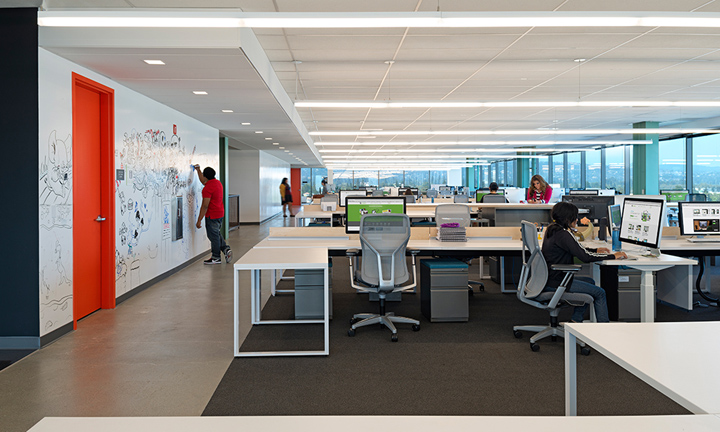
Evernote does not lump departments all together on one floor in cubicles. The layout is open floor where all of the different departments are mixed in together. Designers sit with programmers who are sitting next to sales who are across from PR. The design encourages people to get up and move around and to work with others in different departments easily.

Why is this not done in schools? There has been plenty of talk about cross-curricular needs, yet we section departments off from one another. If students stayed in one part of the building and had access to all of the different departments in one spot, might that encourage stronger bonds between students and teachers? Wouldn't schools see great collaboration between the arts and sciences if they shared a hallway? These are important questions to ask. If schools want collaboration across the curriculum, space needs to be utilized to accomplish it.

I could not find a cubicle in the building. I tried my hardest to find one, but all I found were desks and work spaces. The open format allowed for easier communication from one person to the next. I saw employees working across desks and huddled over drawings without the confining feeling of a cubicle. Cubicles are just the business world's versions of classrooms. Do you know anyone that actually likes working in a cubicle? I didn't think so.

When employees need to work or have a meeting a more private settings, the offices are filled with conference rooms of all sizes. Some are large board room types with the long table, but others are small meeting rooms that sort of resemble the confessional booths from Real World, only a bit bigger and with less crying.


Yes, the conference rooms are named after video games. Each floor is assigned a letter and the video game named rooms are based on that letter. Awesome. Room numbers are so lame. I need to come up with a name for my room and cover the room number with it. I guarantee kids will remember where my room is now.

I think the idea of rooms for meetings when meetings are needed is great. The open space area allows students to work and collaborate when needed. When something a bit more private is needed, presentation planning, student conferences, etc, they can be used. If we really want students to be independent thinkers and learners, we need to provide them the space that encourages this model. The traditional classroom is still geared toward the teacher as the sage on the stage. Even and I move to a more collaborative environment in my classroom, the projector still faces the front of the room and the students still look to me as the hub of information.

The other big things I loved about Evernote's offices was the fact they covered just about every surface with Ideapaint. Ideapaint turns any surface into a dry erase board. Desktops and walls are now a canvas for people to brainstorm and plan.

There were other walls filled with notes from meetings employees used that I cannot share, but there were elements of fun and work everywhere I turned. Ideapaint allowed Evernote to utilize all of their space and not waste paper for simple brainstorming meetings. Many of us still like to write things down to help us through a thought process. Ideapaint is perfect for just that. Best of all, Evernote can take the pictures of the work and save them right into a note. Clean the wall and start all over.

At the end of the day on Fridays, they have a gathering of all employees to share a snack and a drink. In most places, people are out the door, but you can sense the environment is different. Teachers are out the door to their local watering hole the minute the end of the day bell rings on a Friday. Doesn't that same more about the school environment than it does the teachers? If the school environment was better for teaching and learning, would teachers and students hang around to get more done? If schools offered S'Mores like Evernote did when I was there, you might have more people after school willing to help.


The biggest push back I see is from teachers who think our students can't work in such a free flowing environment. To them I say, "Yes, you are right."

However, that's not the students' fault. They do not know any better because we are not preparing them for a world that is starting to look more like Evernote and less like the classroom. If we do our job as educators, our students will not only be successful in these new environments, but they will be innovators and leaders.

I had the best time at Evernote and I can't wait until I get to go back and work with these great people. These are the types of people we need thinking about education reform. If you haven't checked out Evernote, you are missing out!


Saturday, November 10, 2012

The Epic Evernote Experiment Update for November

Another month has passed and I want to share an update with all of you on how the EEE is going.

My Freshmen just completed their first big project. They needed to create their own project that needed to explain and support one of the themes covered in "Of Mice and Men". The students quickly formed their groups and got to work.

One of the things they did was to create shared notebooks and work on their parts of the projects in the shared notebook. This allowed the students to do their own work, but also see what others were doing and provide feedback.

Some students typed up scripts on their notes while others worked on drawings they would later add to the shared notebook.

Despite the varied projects (Puppet show, rewrite of "Walk this Way", Power Point and others) each group of students were able to use Evernote to organize their project. It was really nice to see the students take to Evernote for that type of planning.

My Sophomores are starting work on their big semester project. They just finished reading various Transcendentalist essays and are now going to work in groups to create the ideal Transcendentalist Society and create an infomercial to "sell" the class on moving there.

My Sophomores are little more mature and organized, so I have a good feeling about how they will be using Evernote to organize and share their ideas. I'm really looking forward to this project and the students will have 2 weeks to finish and present.

The new iOS app for Evernote rolled out the other day and I love it. It has many new features that make using Evernote easier than ever before. Check out this Evernote page for details on all of the new features.

I have happily used my IPEVO document camera to show things to classes, my Doxie Scanner to scan in documents I wanted to share with students and staff, my Boogie Board Rip for quick note-taking and writing to explain a process to a student, my Livescribe has been awesome in recording lessons I want students to access later if needed and I have loved using my Moleskine to sit and jot down my ideas and scan into Evernote later. It is really handy at the edcamps I've been to lately. If you haven't had a chance to use any of these amazing products, please give them a try. They are awesome.

That is it for now. I'm on my way back from Redwood, California where I was able to spend the day at Evernote's office and be blown away. There will be a post on that experience in the coming days.

If you want to start your Evernote journey now, follow this link to sign up!

Thursday, October 18, 2012

Evernote for Collaboration #EdChat

My students are working on their first project this year. I'm a big fan of Project Based Learning and have my students multiple projects over the course of the school year. The addition of iPads in my classroom has really allowed me to expand my projects to areas not possible before. The addition of Evernote has really made a positive impact on the flow of project creation.

The students are creating Student Declarations of Independence. The are following the structure of the American version written by Thomas Jefferson. Working in groups of 4-5, they are outlining student rights and their complaints against the Crown (me or the school). It's a nice project I have used over the years and have moved digital recently. The biggest obstacle students always faced was trying to collaborate outside of the classroom. Emails and flash drives would be shared as they try and piece together all of the different parts of their document. Google Docs could have been a viable option, but our students do not have their accounts active and they do not know how to use them. Evernote solves this problem.

Through Evernote's Shared Notebooks (a Premium Feature), students can share notebooks and edit them from their accounts. This allows students to work on their parts of the project and add them to the shared notebook when they are ready. Students no longer need to worry about emails or flash drives. All of the work is safely in their Evernote account for them to access wherever they are.

We have had some sharing issues due to some spam blocking on our school's email server, but that is an issue on our end that is being corrected. Long term, sharing of notebooks will be a positive step in my effort to increase collaboration in my classroom.

Monday, October 15, 2012

Ambassador Nerdy Teacher #Evernote

This might not come as much of a surprise to anyone who has read my blog or seen my Twitter feed, but I'm kind of obsessed with Evernote. My life is ruled by notes and notebooks. Most people would be  concerned about my above and beyond affinity for their program, but the folks at Evernote granted me Ambassador status today. I did a little research on what Ambassadors get for hold such a title and here is what I found.

From Wikipedia "An Ambassador is an official envoy; especially, a highest ranking diplomat who represents a State and is usually accredited to another sovereign State (country), or to an international organization as the resident representative of his or her own government or sovereign or appointed for a special and often temporary diplomatic assignment.[1]"

That sounds about right. I like being referred to as an official anything, but an envoy sounds really fancy. I was even more excited when I saw this photo on Ambassadors,

Hans Holbein the Younger: The Ambassadors, 1533. The life-sized panel portrays
 
Jean de Dinteville and Georges de Selve, the ambassadors of Francis I of France.
All I need are my robes to be in Evernote Green and I'm ready to go. 

I also read (Probably saw on Law and Order) that Ambassadors don't have to pay parking tickets. That is pretty sweet. I think that bad guy from Lethal Weapon 2 (Language Warning) was an Ambassador, but I promise to be like that guy. He was weird and a bit creepy. 

All joking aside, I'm really honored to be working with the Evernote team to help get teachers, students and schools on board with using Evernote. If you have questions, suggestions, tips or other Evernote related comments, please feel free to send me an email or a tweet and I'll help you out.

You can find out about my Ambassadorship and others here.

Have an awesome day!

Ambassador @TheNerdyTeacher